First move for almost everything: Run Verification
App → Verification → Run verification. It builds real test carts in every market you have enabled and reports totals, discount rates, and configuration hazards by name. Most issues below show up there with a specific failing check, which makes the fix obvious. The same checks re-run automatically every night, and every offer card has one-click Pause / Resume if you need to take an offer off the storefront while you investigate.
Two ways to diagnose fast
1. Run Verification. It names the exact failing check on the offer, so you rarely have to guess which section below applies. Start here for any offer type.
2. Ask Shopify Sidekick. With the app installed, ask right in your admin, for example "why isn't my bundle showing on the product page?" or "did my bundles pass verification last night?". Sidekick reads your offers, sync state, store-wide pause, block placement, and the latest verification run, then names the specific reason, all read-only. See using Sidekick and how the integration works.
Fixed bundles
A fixed bundle is a set sold together on one product page. In the cart it stays one line; at checkout it expands into its component SKUs with your bundle pricing.
The bundle did not expand into components at checkout
- Open the bundle in the app: status must be Active and the sync badge green. If the badge shows an error, the message next to it says what failed. Click Save & sync after fixing.
- Confirm you tested checkout, not just the cart. The cart intentionally shows the bundle as one line; the expansion into component SKUs happens at checkout and on the order.
- Run Verification: it creates a test cart containing the bundle and reports whether expansion produced the right components and totals. If it still looks wrong, ask Sidekick "why isn't my bundle showing on the product page?".
Customers see the components at checkout. Is that normal?
Yes, by design. The bundle appears as one product on the product page and in the cart. At checkout it expands into its component line items with real SKUs and correct prices, each carrying the bundle context. That is exactly what makes your warehouse, 3PL, and refunds work without special handling. See the 3PL guide.
The bundle product has no image
The app creates the bundle product but does not invent product photography. Add an image in Shopify admin: Products → your bundle → Media. A simple option: reuse a component's photo or a flat-lay of the set.
I deleted a bundle in the app but the product is still in my store
Intentional. Deleting a bundle removes the app configuration and stops the expansion, but leaves the product on your store because campaigns, links, and SEO may point at it. If you want it gone: Products → select it → Delete product in Shopify admin.
Variant-selection kits
A variant-selection kit is a fixed kit where the shopper still picks a shade, size, or other variant per component. Each chosen variant carries its own SKU into the order, and the kit expands at checkout exactly like a fixed bundle.
The shopper's chosen variant is not on the order or pick list
- Check the order, not the cart. Like any fixed bundle, the kit stays one line in the cart and expands into its picked component SKUs at checkout and on the order.
- Open the kit in the app: status Active, sync badge green, then Save & sync once.
- Run Verification: it builds a test cart and reports the exact components and SKUs the expansion produces.
A variant option is missing from the selector
- Open the kit and check the affected component: the bundle editor lets you allow all of a component's variants or an explicit subset. Make sure the missing variant is in the allowed set, then Save & sync.
- Confirm the variant still exists and is published in Shopify. A variant that was deleted or unpublished cannot appear in the selector.
- Hard-refresh the product page, then run Verification if it still looks wrong.
A variant you meant to exclude still shows
Exclusions are simply the allowed subset in the bundle editor: to drop a discontinued shade or size, open the kit, remove it from that component's allowed variants, and Save & sync. The products themselves are untouched. Run Verification to confirm.
Quantity breaks
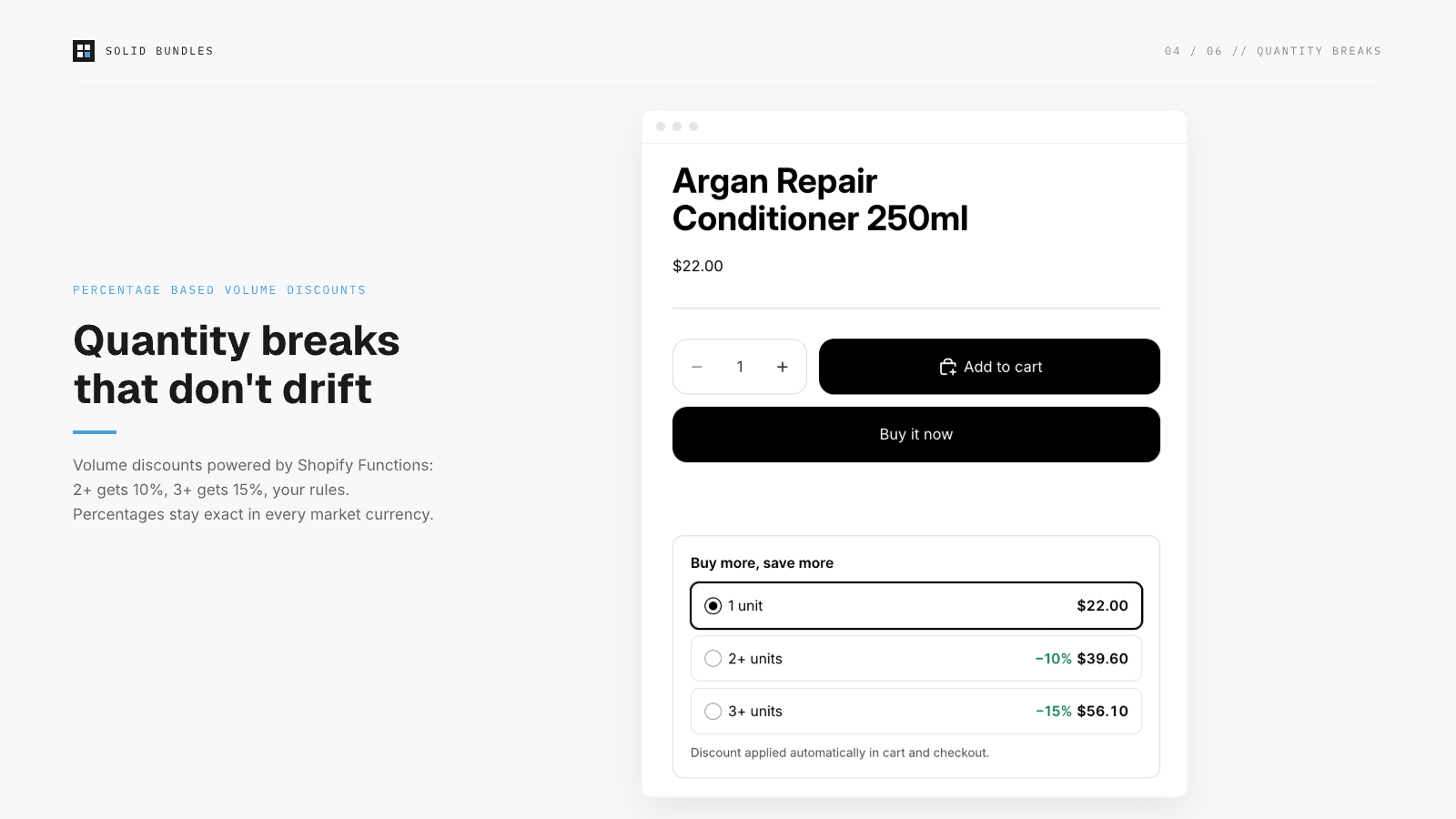
Quantity breaks are tiered percentage discounts on a single product. The quantity is counted per product, not across the whole cart.
The discount is not applying (or shows 0%)
- Open the quantity break in the app and check its status is Active, then click Save & sync once. Syncing re-binds the discount to the live version of the app's discount function.
- Check the cart quantity actually meets the lowest tier (2+ means 2 of that same product, not 2 items across the cart).
- Check discount combinations in your Shopify admin (Discounts). Shopify only applies one product discount to a line unless discounts are set to combine. A competing automatic discount or a discount code can win the line and yours will not show.
- Run Verification. If it reports the correct percentage, the configuration is right and the issue is display-side (see Storefront blocks and theme below).
A tier is not triggering
The most common cause: the quantity is counted per product, not cart-wide. Two different products at one unit each do not add up to a 2+ tier. Confirm the shopper has enough of the same product in the cart to reach the tier, that the tier's threshold is what you expect, then Save & sync and run Verification.
Bought-together (FBT)
Bought-together offers recommend companion products on an anchor product's page and discount them when bought with the anchor. They are an upsell garnish, and every active offer consumes part of Shopify's per-store discount budget.
The offer is not appearing on the product page
- Open the offer in the app: status Active, sync badge green, then Save & sync once. The offer renders on its anchor product's page.
- The app enforces guard rails and warns before an offer would push cart sizes past Shopify's execution limits. If you saw such a warning, that offer may be held back; resolve it in the offer, then Save & sync.
- Run Verification, and ask Sidekick "why isn't my bundle showing on the product page?" for the specific reason.
The wrong products are suggested
The companions are exactly the ones set on the offer. Open the offer, confirm the anchor product and its companion products, adjust, then Save & sync.
The discount is not combining with another discount
Check discount combinations in your Shopify admin (Discounts). Shopify only applies one product discount to a line unless discounts are set to combine, so a competing automatic discount or code can win the line. Set the discounts to combine if you intend them to stack, then Save & sync and run Verification.
Build-a-box
Build-a-box lets the shopper pick a set number from a pool of eligible products, and the finished box saves a percentage. At checkout the box expands into the picked components as real order lines, exactly like a fixed bundle.
The pool or pick range is wrong
Open the build-a-box in the app and check the pool of eligible products and the number of picks you allow. Adjust, then Save & sync and hard-refresh the product page.
The price does not reflect the set discount
Confirm the percentage the finished box saves on the offer, then Save & sync. Run Verification: it builds a test box and reports the exact total a customer would pay, per market.
The box did not expand into components
Same mechanism as a fixed bundle: the box stays one line in the cart and expands into the picked component SKUs at checkout and on the order. Check the order, not the cart. Confirm status Active with a green sync badge, Save & sync, and run Verification. See Fixed bundles above.
Storefront blocks and theme
The "What's inside" list, quantity break tier table, and build-a-box picker are theme blocks. If a block is not showing on the product page:
- The blocks live in your theme's product template: Online Store → Customize → product template → Add block → Apps. Add Bundle contents to the bundle's product page and Quantity breaks to the discounted product's page. The app's setup guide has a one-click Open theme editor link that lands you in the right place.
- Blocks render only when their data exists. Open the offer in the app and click Save & sync once; this rewrites the storefront data the blocks read. Then hard-refresh the product page.
- If your theme has multiple product templates, make sure the block sits on the template assigned to that specific product.
Pricing and markets
Prices look wrong in one specific market
Run Verification first: it checks every enabled market and reports the exact totals a customer would pay, including currency conversion. Percentage quantity breaks stay exact in every currency. Bundle component prices are set in your store currency and convert through Shopify's standard market pricing. If a specific market looks off, check that market's price adjustments in Shopify admin (Markets) before suspecting the bundle.
A sync error badge appears on an offer
The badge text contains the store's own error message (for example a product that was deleted or unpublished). Fix the underlying item, then Save & sync. Two hazards Verification catches for you: duplicate SKUs across components, and components that are not published to your online store.
Still stuck?
Email [email protected] with your store name and which bundle or quantity break misbehaves. You reach the people who build the app, not a ticket queue.
Two minutes of checks before emailing: bundle status Active, block placed in the current theme, Verification green. Still wrong? Email [email protected] and you reach the people who build the app.
Back to setup